How to disable in-app purchases on iPhone, iPad, and iPod touch
The nightmare is over
We've all heard the horror stories. The darling child who spent a fortune on virtual Smurfberries, or the sweet daughter who maxed out daddy's credit card buying horses in My Little Pony.
Handing an iPad to your child is like strapping a time bomb to your wallet. Sooner or later, your money is going to disappear in a puff of smoke.
Luckily, Apple doesn't leave you in the lurch. Delve deep enough into your device's settings and you'll find a heap of options that let you restrict access to certain features and functions of your device.
Read on to find out how.
And if you found this article too late, e.g. your sweet little offspring has already raided your debit card to feed her My Horse addiction, all is not lost. Check out this article for tips on asking Apple for a refund.
 |
|
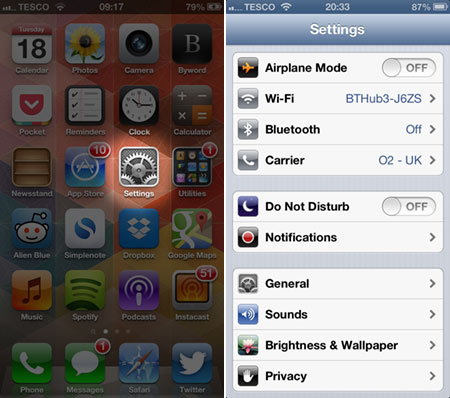 First things first, go to your iOS device's Home screen page (hit the circular button on the front of the gizmo) and find the 'Settings' app. It's the one with three silver cogs on its icon.
If you can't find it, use Spotlight (by swiping across the Home screen from left to right) to search for it.
Once you're inside the 'Settings' app, choose 'General' from the list of options.
First things first, go to your iOS device's Home screen page (hit the circular button on the front of the gizmo) and find the 'Settings' app. It's the one with three silver cogs on its icon.
If you can't find it, use Spotlight (by swiping across the Home screen from left to right) to search for it.
Once you're inside the 'Settings' app, choose 'General' from the list of options. | |
 |
|
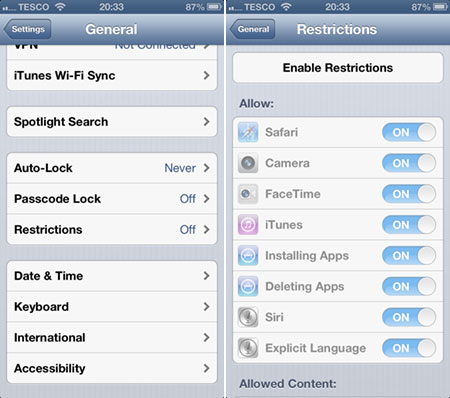 Scroll down and tap on 'Restrictions'.
As you can see, this page lets you put the kibosh on loads of features, from receiving FaceTime video calls to downloading 18-rated movies on iTunes.
First off, though, click 'Enable Restrictions'.
Scroll down and tap on 'Restrictions'.
As you can see, this page lets you put the kibosh on loads of features, from receiving FaceTime video calls to downloading 18-rated movies on iTunes.
First off, though, click 'Enable Restrictions'. | |
 |
|
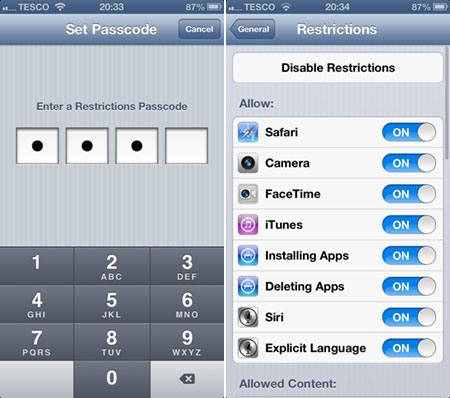 Next, you need to set a four-digit passcode. This locks out nosy kids who are trying to revert back to the old settings. Pop in a passcode (twice) to continue.
Those previously locked options are now available for you to tinker with. Now, there are two ways to go about solving your in-app purchase woes.
Next, you need to set a four-digit passcode. This locks out nosy kids who are trying to revert back to the old settings. Pop in a passcode (twice) to continue.
Those previously locked options are now available for you to tinker with. Now, there are two ways to go about solving your in-app purchase woes. | |
 |
|
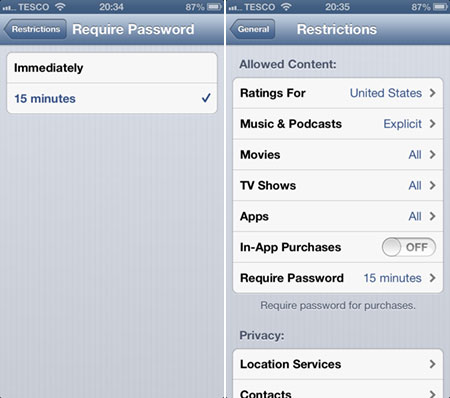 The problem that most parents face is that once they put in their password (say, to download a new game), it kickstarts a 15-minute grace period during which you can buy whatever you want without having to re-insert your credentials. This is when unfortunate shopping sprees occur.
To avoid this pitfall, choose 'Require Password' and then set it to 'Immediately'. Now, you'll need your Apple ID password for every single purchase, either on the store or inside an app.
If that's not enough for you, simply set 'In-App Purchases' to 'off' and you'll put a stop to all IAPs forever.
The problem that most parents face is that once they put in their password (say, to download a new game), it kickstarts a 15-minute grace period during which you can buy whatever you want without having to re-insert your credentials. This is when unfortunate shopping sprees occur.
To avoid this pitfall, choose 'Require Password' and then set it to 'Immediately'. Now, you'll need your Apple ID password for every single purchase, either on the store or inside an app.
If that's not enough for you, simply set 'In-App Purchases' to 'off' and you'll put a stop to all IAPs forever. | |
 |
|
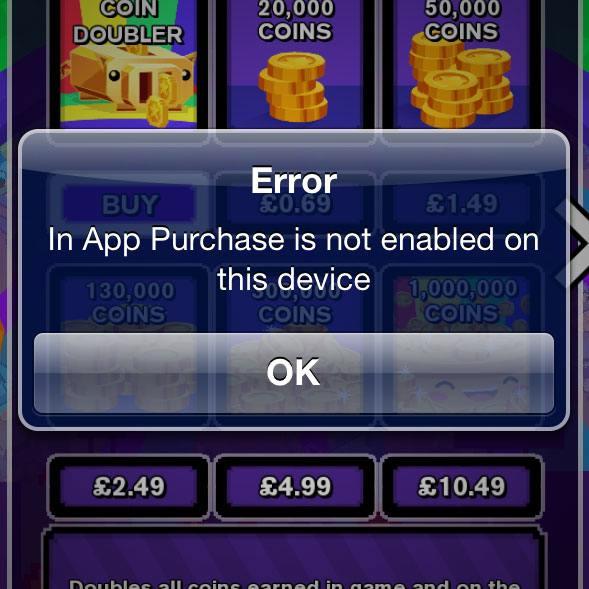
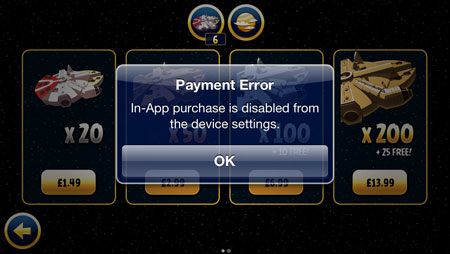 See? We went to download some Mighty Falcon tokens in Angry Birds Star Wars, but our restrictive iPhone wouldn't let us buy them.
With this restriction in place, you won't be able to download Smurfberries, Bux, Donuts, Diamonds, Gold, or Gems ever again!
Well, unless you turn in-app purchases back on again, of course.
See? We went to download some Mighty Falcon tokens in Angry Birds Star Wars, but our restrictive iPhone wouldn't let us buy them.
With this restriction in place, you won't be able to download Smurfberries, Bux, Donuts, Diamonds, Gold, or Gems ever again!
Well, unless you turn in-app purchases back on again, of course. | |
